OWLv2 Student Help
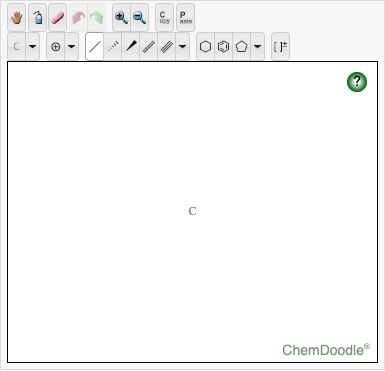
Draw the structural formula of a molecule by adding atoms, bonds, and rings to your model using the buttons at the top.
A question might begin with the ChemDoodle Sketcher displaying a single atom, an undefined dot, or a model that is nearly complete for you to finish.
Draw the structural formula.
Add or edit atoms
Click the down arrow next to the element button.
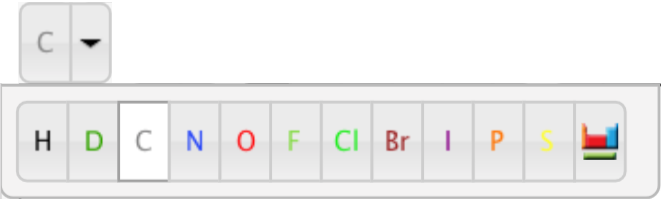
Select an element.
Choose from the displayed options, or click
 to choose from the periodic table.
To add to the structural formula: Click an existing element in ChemDoodle Sketcher, drag your cursor away from the existing element, and then release.
To edit an existing element: Click the existing element.
Change the charge of an atom
Click the down arrow next to the attributes button.
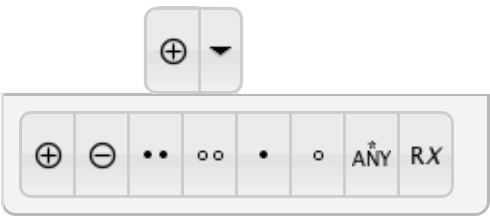
- Click
 to increase the charge, or
  to decrease the charge.
 - Click an atom.
Add or remove a lone pair
Click the down arrow next to the attributes button.
- Click
 to add a lone pair, or
  to remove a lone pair.
 - Click an atom.
Add or remove a radical
Click the down arrow next to the attributes button.
- Click
 to add a radical, or
  to remove a radical.
 - Click an atom.
Label an atom with an asterisk
Click the down arrow next to the attributes button.
- Click
 .
. - Click an atom.
Designate an atom as an R group
Click the down arrow next to the attributes button.
- Click
 .
. - Click an atom.
- Enter a positive integer in the Input window.
Draw bonds
To draw a bond with carbon at the other end:
Select a bond type.
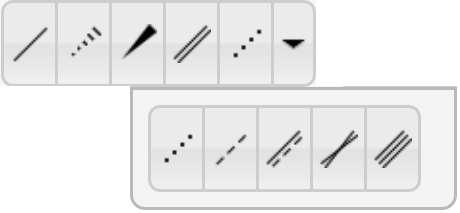
- Click an existing atom.
To draw a bond with an element other than carbon at the other end:
- Select the single bond.
- Select an element.
- Click and drag away from an existing atom.
To edit an existing bond: Select a bond type from the menu and click an existing bond.
Draw rings
Select a ring type.
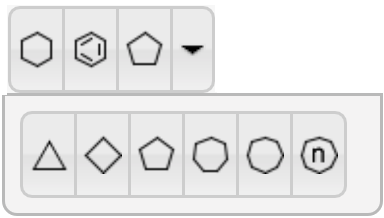
- Click an atom or pair of atoms.
Enclose a region with brackets
- Click
 .
. - Click and drag to select the region to enclose with brackets.
Use the three sets of arrows around the brackets to define the following values:
- Charge amount: top-right arrows
- Repeat count: bottom-right arrows
- Multiple count: center-left arrows
Move objects
- Click
 .
. - Click and drag an object.
Erase an object
- Click
 .
. - Click an object.
Undo your last action
Click
 .
.Redo your last action
Click
 .
.Clear all objects
Click
 .
.Click Submit Answer.
Question Example
Example instructions:
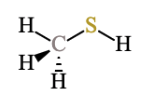
Draw a complete structure for a molecule with the molecular formula CH4S.
- Explicitly draw all H atoms.
- In cases where there is more than one answer, just draw one.
The question begins with the ChemDoodle Sketcher tool displaying a single carbon atom.
Answer:
Click
 , and click the carbon atom.
- Open the dropdown menu next to the element button, and select S.
Click the new carbon atom to change it to an sulfur atom.

- Click , and click the sulfur atom.
- Open the Set Label dropdown menu and select H.
Click the new carbon atom to change it to a hydrogen atom.
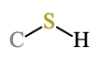
- Click , and click the carbon atom.
Select H, and click the new carbon atom.
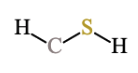
- Click
 , and click the carbon atom.
 Select H, and click the new carbon atom.
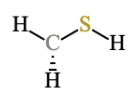
- Click
 , and click the carbon atom.
 Select H, and click the new carbon atom.