

Spark Instructor Help
Editing a premade test creates a new copy of that test with your changes. Any future edits will be saved directly to your copy of the test. You can always access the original version of the premade test.
Click Tests in Spark.
Optional If you teach multiple courses, filter by program using the Products menu.
Scroll to the test you want to edit and click
 .
.On the left side of the screen, the list of questions is displayed in the order they are shown to students. On the right side of the screen, a preview of each question is displayed.
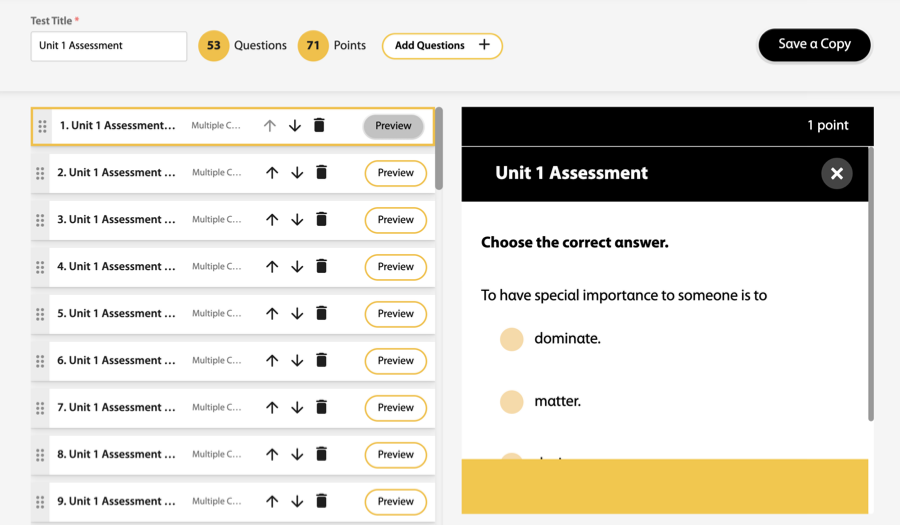
Edit your test before saving.
Rename your test
Enter a new title in Test Title.
Add a question
Click Add Questions+ and select additional questions.
Preview a question
Click
 .
.Remove a question
Click
 .
.Change the order of questions
Click
 or
or  , or click
  next to a question, drag the question and drop it to the position you want.
Click Save a Copy to save your changes.
Enter a name for your version of the test in Test Title.
Click Save.
The Tests tab opens. The edited copy of a premade test is labeled

. If you edit that test again, it is labeled

.