
WebAssign Student Help
- Sign In / Account
In the Show My Work toolbar, click Insert Math.
The toolbar changes to display buttons for entering math expressions.
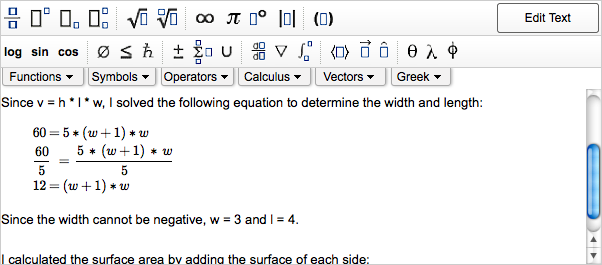
Use the keyboard and buttons to enter your math expression.
To do this
Do this
Enter variables.
Type the variable name. Variables are automatically italicized.
Enter lowercase or uppercase Greek letters.
Type a backslash (\) followed by the lowercase or capitalized name of the letter, for example, \delta to insert δ or \Delta to insert Δ.
Display or hide additional buttons.
Click Functions, Symbols, Operators, Calculus, Vectors, or Greek.
Move the insertion point.
Press the home, END, and arrow keys.
Move to the next part of the expression.
Press TAB.
Move to the previous part of the expression.
Press SHIFT+TAB.
Copy the entire expression.
Press CTRL+C.
Cut the entire expression.
Press CTRL+X.
Paste the entire expression.
Press CTRL+V.
Delete the character to the left of the insertion point, the selected expression, or notation such as fractions.
Press BACKSPACE.
Delete the character to the right of the insertion point, the selected expression, or notation such as fractions.
Press DELETE.
Delete the current part of the expression and its parent — for example, deletes an entire fraction.
Press CTRL+DELETE.
Examples: Entering Math Notation
The following examples illustrate entry of some common expressions.
Expression | Do this | To display this |
|---|---|---|
A simple expression with integers | Type 2x+52500 | |
A polynomial with a fractional coefficient |
| |
A simple inequality |
| |
A square root | Type sqrt(x | |
A cube root |
| |
An expression involving pi and Euler's number | Type \pi+e^2 | |
The natural logarithm of an absolute value |
| |
A complex number | Type 2+3i | |
A vector in vector bracket form |
|


