

Spark Instructor Help
From the dashboard, select your course.
Click Gradebook.
The Student Performance tab displays.
Click Class Performance.
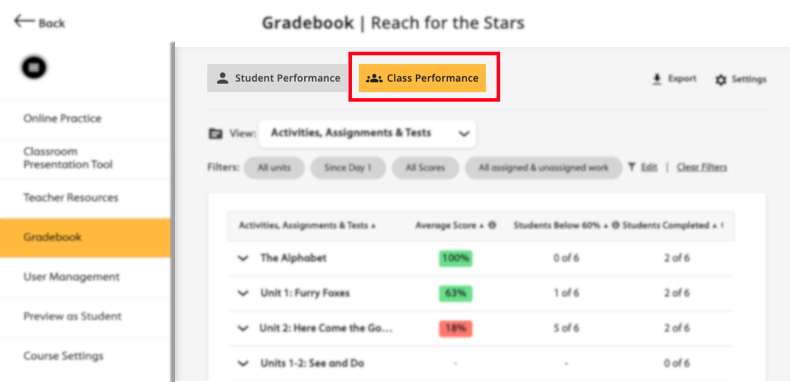
Select your desired performance category option from the View dropdown menu.
Depending on your program, you can select:
- Activities, Assignments, & Tests
- Skills & Learning Objectives
- Common Core State Standards (CCSS)
- CEFR Descriptors
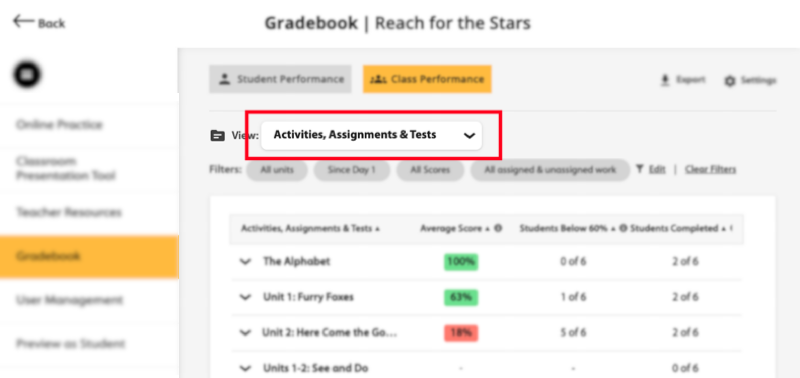
Class performance results will display based on your selection.
Optional To filter the results, click
 .
.Select your desired filter based on the following:
- Dates or Units
- Average Score
- Assigned Work
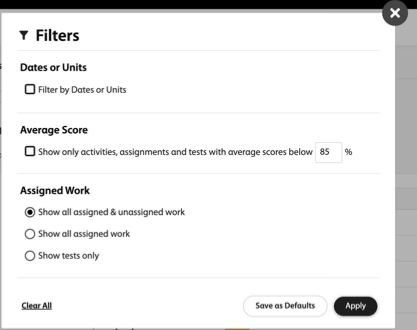
Click Apply.
Optional Click
 next to a specific grouped result, to expand.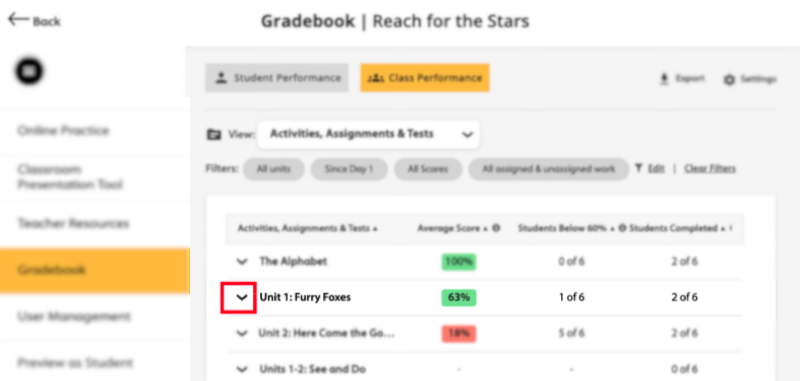
A list of specific criteria with student results will display.
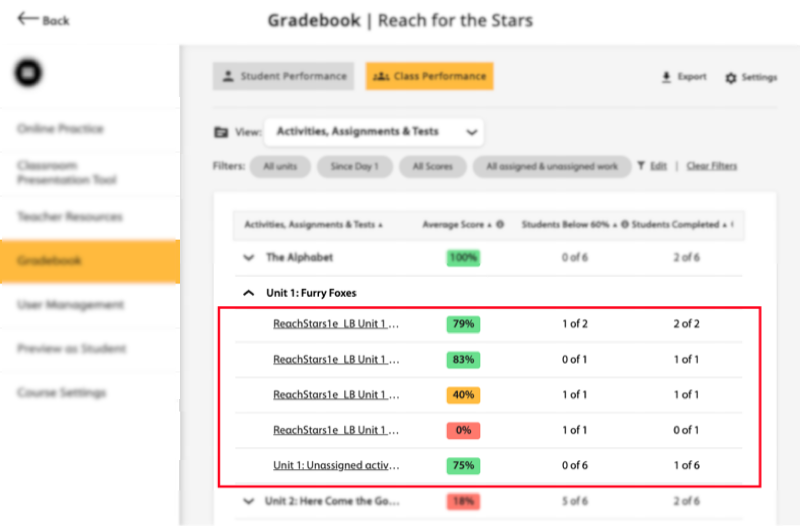
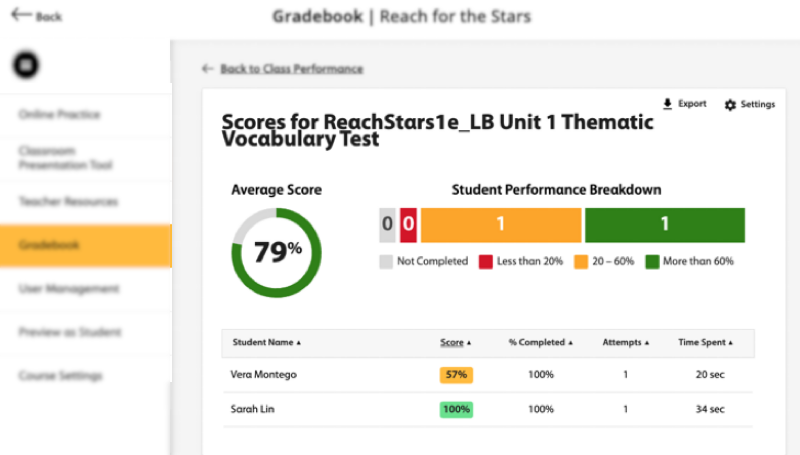
Optional Click a specific criteria to get further details of the student performance (Example: Unit 1: Unassigned activity).
On this screen, you can see more detailed information about:
- The class average score for that specific performance criteria
- Color-coded breakdown of how many students are within each score range
- Each student's score
- Each student's percentage completed
Optional To edit Class Performance settings, click
 .
.Set your High Performance and Low Performance ranges for your class.
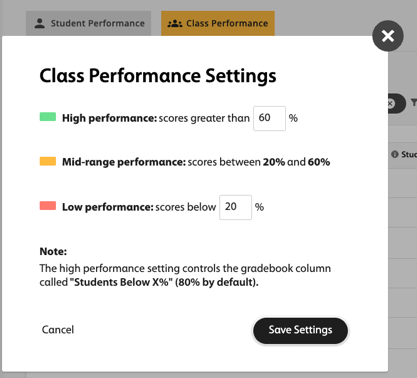
Click Save Settings.