

Spark Instructor Help
Access the Student Performance Tab
From the dashboard, select your course.
Click Gradebook.
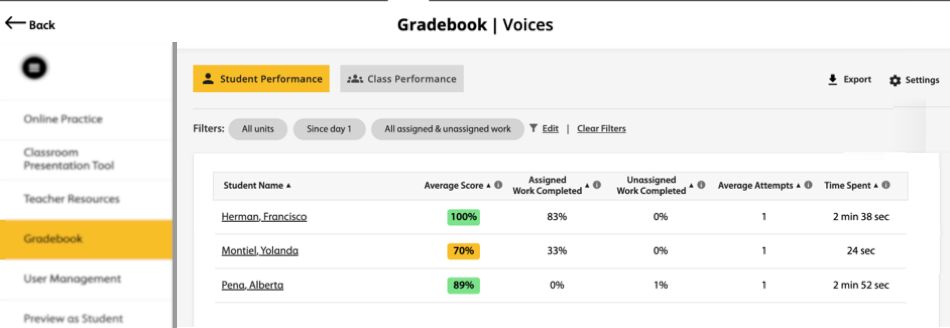
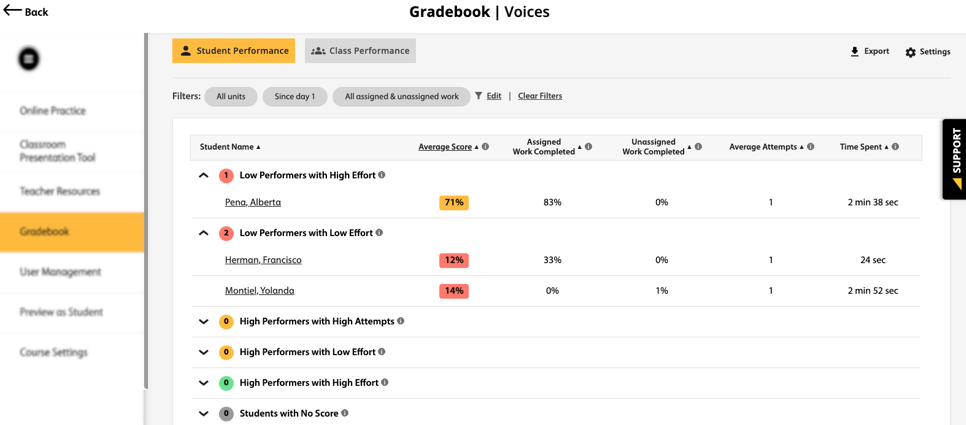
The Student Performance tab display. You can see each student's:
- Average score
- Percentage of all assigned work completed
- Percentage of all unassigned work completed
- Average number of attempts
- Total time spent on all the work
Filter Gradebook
Apply filters to display specific information about your students' performance.
To filter by
Do this
Dates or Units
- Click
 .
. - Select the Filter by Dates or Units check box.
To show scores from a specific date range, select Dates: Show only scores from the last, then select the date range you want from the dropdown menu.
You can select from the last 14, or 30 days.
To show scores from specific units, select Units: Show only scores from, then select the unit you want from the dropdown menu.
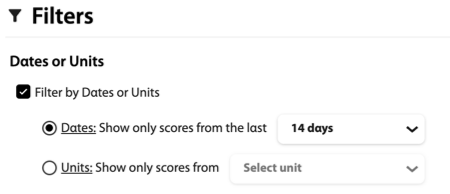
- Click Apply.
Assigned Work
- Click .
Under Assigned Work, select the type of work you want to display.
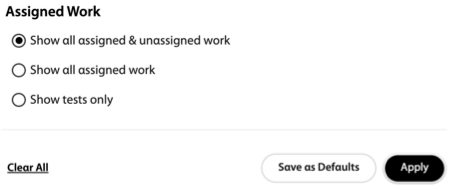
- Click Apply.
- Click
Cohorts View
Short Description: Group students into cohorts based on performance, effort, and attempts.
The cohorts view allows you to easily identify which students are high-achieving and which students are struggling.
Click
 .
.Click Display.
Select the Group students into cohorts based on performance and effort/attempts check box.
Optional Click Effort & Attempts to set the High Effort and High Attempt settings for your class.
Low Effort score is automatically set to less than the High Effort score.
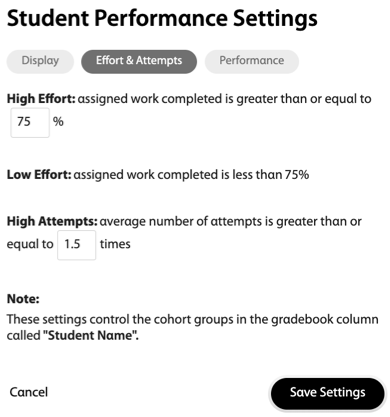
Click Save Settings.
The students are grouped into cohorts based on their performance, effort and attempts.
Student Performance Settings
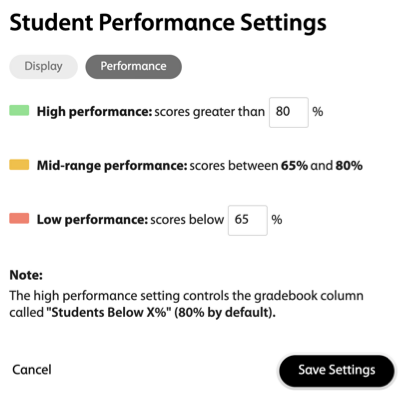
Short Description: The student performance settings allow you to determine the score ranges for high, middle, and low performing students.
Click
.Set the High Performance or Low Performance ranges for your class.
The Mid-range Peformance score automatically updates.
Click Save Settings.
View an Individual Student's Performance
Click the student's name.
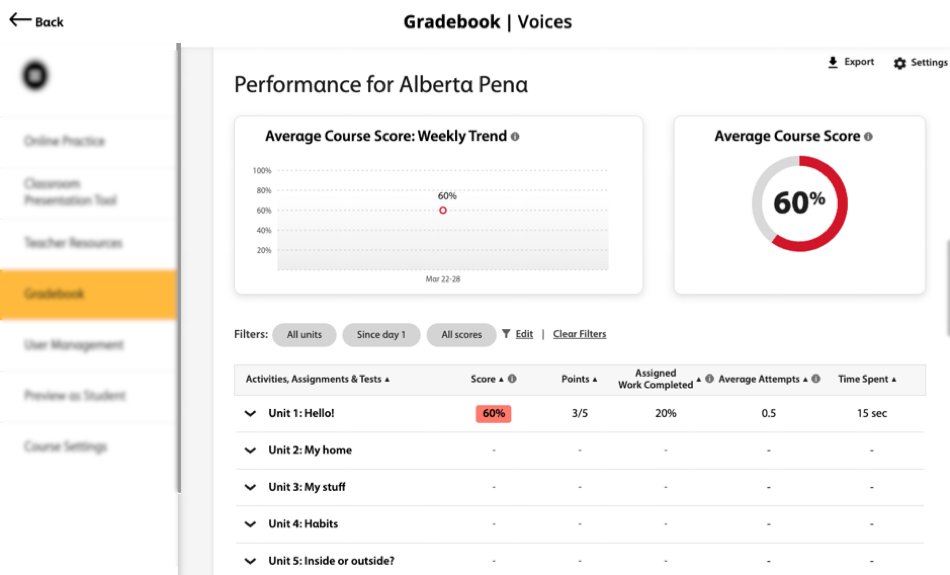
You can see the student's:
- Overall average course score
- Weekly trend for average course score
- Percentage score on each completed unit
- Points scored on each completed unit
- Percentage of the work completed for each unit
- Average number of attempts on each activity, assignment, and test within a unit
- Total time spent on each unit
Optional To filter by dates, units, average score, or type of work, click
.Select your desired filters.
Click Apply.
Optional Click
 next to a specific unit to display the student's performance on individual activities, assignments and tests within that unit.
Optional Click the activity or assignment name to display the student's performance on that assignment.
Click
 to see the student's answers on that assignment.
Create a Gradebook Report
To create a report, click
 on any page within the Gradebook.
The report will only contain data displayed on that page, including all the applied filters.
Select either CSV or XLSX file for your report.